Seven Settings That Let a WordPress Site Take 50× More Traffic
Published September 6, 2026

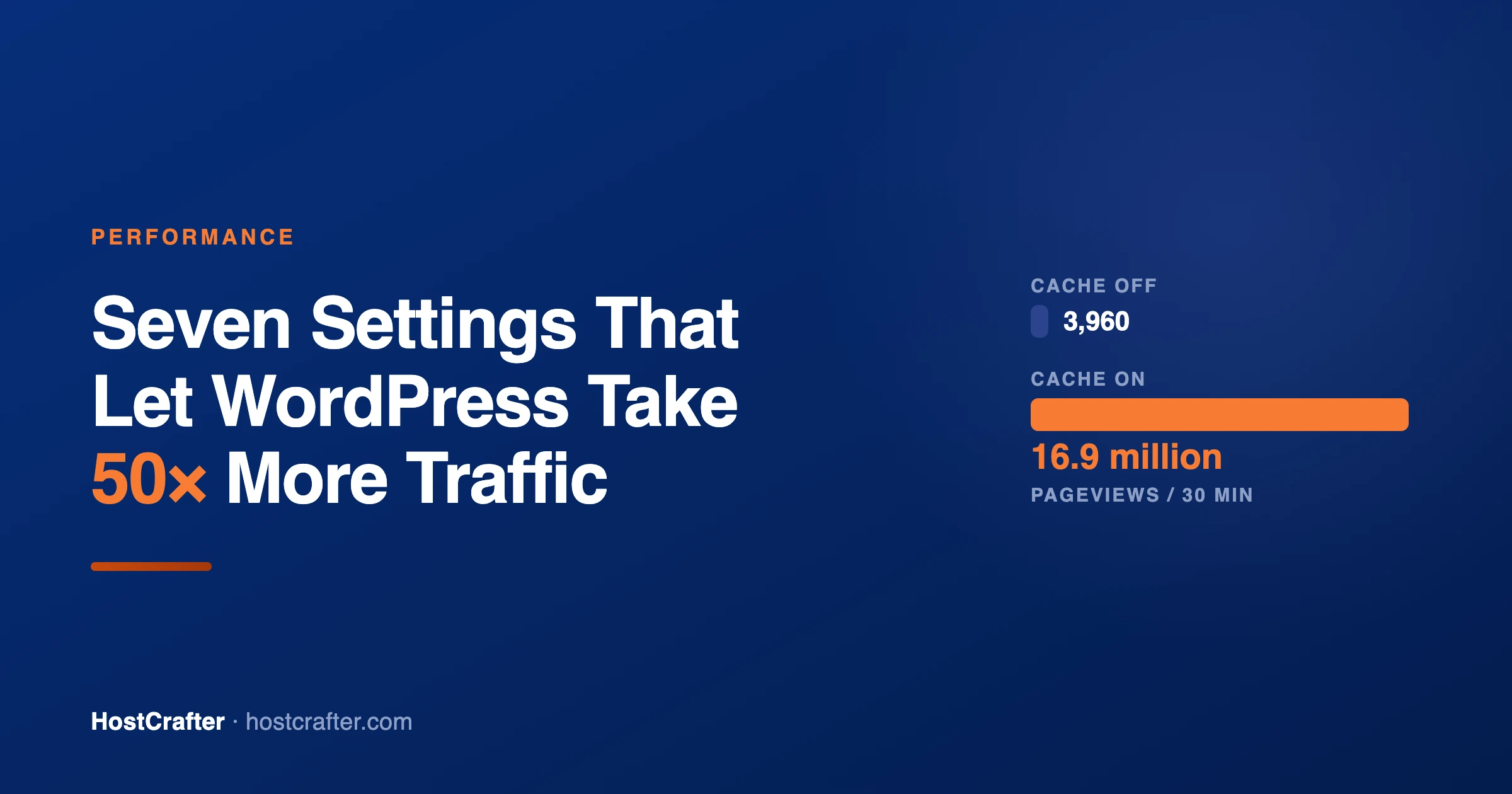
Here is the idea the whole article hangs on. Take one WordPress site on one server, and change nothing about it except whether a visitor’s page comes out of a cache.
Same plan. Same content. Orders of magnitude more traffic absorbed, because in the second case the server answers without ever starting PHP.
That is not a realistic before-and-after for a live site — no real site is 100% cacheable, and we will do the honest arithmetic in a moment. But it tells you where the leverage is, and it is not where most “speed up WordPress” advice points. It is not your CPU, your RAM or your plan. It is the proportion of your visitors who never reach PHP at all.
- Measured on
- Our own nodes, Aug–Sep 2026
- Biggest single win
- A page cache that skips PHP
- Most common leak
- Plugins loading on every page
- Time to apply
- An afternoon
The Number That Sets Your Traffic Ceiling
The gap between those two states is enormous, and it is much larger than the gap between a cheap plan and an expensive one. A bigger plan barely changes what a cached page costs, because a cached page costs almost nothing to serve anywhere. What it changes is how many uncached requests can run at once, and the whole trick is to have very few of those.
Your real site sits between those two, and where it sits is decided by one figure: your cache hit ratio — the share of requests answered from cache. That single number is what converts into traffic capacity, and it does so brutally, because the uncached requests dominate the arithmetic:
| Cache hit ratio | Traffic the same site can absorb | Roughly |
|---|---|---|
| 0% | 1× | An unlucky Reddit link takes the site down |
| 50% | 2× | Still fragile |
| 80% | 5× | A typical WordPress site with a cache plugin |
| 90% | 10× | Tidy |
| 95% | 20× | Good |
| 98% | 50× | What this article is aiming at |
| 99% | 98× | A static site with comments |
Read the middle of the table again. Going from 80% to 98% is a ten-fold change in how much traffic the same site on the same plan can absorb, and 80% is roughly where a normal WordPress site with a cache plugin installed and left alone actually sits. Across the sites on our own nodes, about 83% of requests are served without ever entering a customer’s share of the server.
So the seven settings below are all, in one way or another, the same job: move that percentage up. Nothing here is about buying a faster CPU.
1. Cache the Page — and Prove PHP Is Not Running
When WordPress builds a page it loads several hundred PHP files, opens a database connection, runs a few dozen queries, executes every active plugin’s hooks, renders the theme, and hands the result back. We measured that work at about 208 milliseconds of CPU time per page on a normal site. Multiply by the plugins on a real install and it goes up sharply — every shortcode, every slider, every “related posts” block is more of the same work, repeated for every single visitor, to produce a page that is identical for all of them.
A page cache stores the finished HTML the first time and hands the file to everybody else. That cost is about a thousandth of the same page rendered fresh.
Almost every WordPress site has a cache plugin. Far fewer have a cache that actually skips PHP, and that distinction is the whole game. There are two ways a plugin can cache a page:
- Through PHP. The plugin drops a file called
advanced-cache.phpinto your site. WordPress loads it very early, it finds the stored page and prints it, and PHP exits before the rest of WordPress starts. Genuinely fast — 90 to 250 times faster than no cache — but it still costs a PHP worker for every single visit. Your plan has a fixed number of those. - Before PHP. The plugin writes rules the web server reads, or talks to a cache built into the web server. The request is answered by the web server itself. PHP never wakes up, so the number of PHP workers on your plan stops being the ceiling.
The distinction is invisible from the outside — both are fast on an empty server. It only matters when you are busy, which is precisely the moment it matters most.
x-litespeed-cache: hit, cf-cache-status: HIT, x-cache: HIT. A plugin-level cache usually leaves an HTML comment at the very bottom of the page source instead, along the lines of “Cached by …”. Comment at the bottom means PHP ran to put it there. How to check your own site
You do not need a lab for this. Open your site in a private window, load a page twice, and look at what your cache plugin reports in its own dashboard: most of them will tell you plainly whether that page was served from cache. If yours says the page is cached and the site still feels slow, the problem is somewhere else on this list.
The thing to aim for is that an ordinary visitor to an ordinary page never makes WordPress run at all. Everything else in this article is smaller than that.
2. Match the Cache Plugin to the Web Server
This is the part almost no “best cache plugin” article mentions, and it is the single most consequential choice on the list: which plugin lands in the top half of that table depends on what web server you are on. The same plugin can bypass PHP on one server and go through PHP on another.
| Your web server | What reaches the top half | Why |
|---|---|---|
| LiteSpeed | LiteSpeed Cache | The plugin does not store pages at all. It adds a header telling the server to keep the page and how to label it, so the cache is the web server. Nothing else has that hook. |
| Apache | W3 Total Cache, WP Rocket, WP Super Cache | Apache reads .htaccess, so a plugin can write rewrite rules that hand its stored HTML straight to Apache. PHP is skipped. |
| nginx | Whatever your host has configured — ask them | nginx does not read .htaccess. The rules a plugin writes there are inert. Unless your host has added matching rules to the nginx config, the plugin’s cache is served through PHP. |
Three practical consequences:
- If you are not on LiteSpeed, do not install LiteSpeed Cache. It is an excellent plugin and it will do very little for you. Its whole design is a conversation with a LiteSpeed server, and without one on the other end it falls back to a much more ordinary cache.
- If you are on nginx, ask your host one question: “does my cache plugin’s static HTML get served without starting PHP, or do you have a server-level cache in front?” Good managed hosts on nginx run their own cache layer and the answer is yes. Cheap shared nginx hosting often does neither, and the plugin is quietly doing PHP work on every hit.
- Never run two page caches at once. Two plugins both deciding what to store and when to throw it away is how a visitor gets served a page that should not exist — a logged-out person seeing a cached admin bar, or a price from last week. If you install a new one, deactivate the old one first.
3. Stop Paying Full Price for Every Ad Click
This one is small to fix, invisible until you look, and it lands squarely on the most expensive traffic you have.
When somebody clicks a Google ad, a Facebook post or a newsletter, the link they follow is not yoursite.com/offer. It is yoursite.com/offer?gclid=EAIaIQob…, or ?fbclid=…, or ?utm_source=newsletter&utm_medium=email. The page that comes back is byte for byte identical — those parameters are for the analytics script in the browser, not for WordPress.
But most caches key their stored pages on the full URL including the query string. Every unique gclid is a URL nobody has ever requested before, so every ad click is a cache miss and a full WordPress render. We measured that penalty on a real site: 237 milliseconds instead of 23 — ten times the cost, falling precisely on the visitors you paid for.
The fix is to strip known advertising and analytics parameters from the cache key, so an ad click and a plain visit answer from the same stored page. Every serious cache can do it. Two traps though, and we walked into both:
- The setting can be present, switched on, and doing nothing. LiteSpeed Cache ships a “Drop Query String” setting, on by default, already listing
utm*,gclidandfbclid. It implements it by writing directives into.htaccess, which is not where every server acts on them. We watched three differentgclidvalues produce three misses and three full renders with the correct settings sitting in that file the whole time. On our stack it needed the same directives somewhere else entirely, which is a thing a host can fix for every site at once and a thing you cannot fix from inside the plugin. - Do not strip everything. A real search —
?s=running+shoes— is a genuinely different page and must not share a cached copy with the homepage. Strip the click identifiers, leave the rest. We deliberately leaverefalone too, because plenty of sites route on it.
?gclid=test111 on the end, then ?gclid=test222. If the second and third are noticeably slower than the first, or their response headers say miss where the plain one says hit, every ad click you buy is costing you a full render. On our nodes all three come back as a hit, and ?s= still goes to PHP, which is the distinction that matters. 4. Find the Plugins That Load on Pages They Are Not On
The advice “use fewer plugins” is not quite right — twenty well-behaved plugins can be lighter than three badly behaved ones. The real question is narrower: which plugins add weight to pages they have nothing to do with?
Take the most-installed form plugin in the world, Contact Form 7. We read the source of version 6.1.7 as installed on one of our own servers. It registers its assets on wp_enqueue_scripts and then does this:
if ( wpcf7_load_js() ) {
wpcf7_enqueue_scripts();
}
...
if ( wpcf7_load_css() ) {
wpcf7_enqueue_styles();
}
Both of those functions return a constant that defaults to true. There is no check for whether the page contains a form. So on every page of your site — your homepage, every blog post, your privacy policy — a visitor downloads:
| File | Size |
|---|---|
includes/js/index.js |
13,452 bytes |
includes/swv/js/index.js (its validation dependency) |
12,512 bytes |
includes/css/styles.css |
2,979 bytes |
| Total, on every page | 28,943 bytes across three requests |
For scale: a full pageview on a lean theme measured 41 KB over the wire in our own testing. A form plugin, on a page with no form, is adding most of that again — plus three round trips, which on a phone on mobile data cost more than the bytes do.
Contact Form 7 is not a bad plugin and this is not a reason to abandon it. It is an example of a pattern you should go looking for, because it is everywhere: sliders, page builders, share buttons, review widgets, chat boxes, and cookie banners all commonly load their entire front-end on every page in case one of them needs it.
How to find them, in five minutes
-
Pick a page with nothing on it
Your privacy policy, or an old blog post. Something with no form, no slider, no gallery, no shop. That page should be nearly the lightest on your site.
-
Open the browser’s network tab and reload
Sort by name. Every request with
/wp-content/plugins/in it is a plugin loading itself on this page. Read the plugin’s name out of the path and ask: does this page use that plugin? -
Deal with each one, in this order
Delete it if you are not using it — deactivated is not deleted, and a deactivated plugin is still a security update you owe. Replace it if it does one small job badly. Or restrict it, which is often two lines: Contact Form 7’s own documented switch is
define('WPCF7_LOAD_JS', false);anddefine('WPCF7_LOAD_CSS', false);inwp-config.php, after which you load them only on the page that has the form.
5. Put a CDN in Front of the Static Files
A page cache removes the PHP. A CDN removes the distance. They solve different halves of the same problem and they stack.
Your server is in one place. If it is in Frankfurt and your reader is in São Paulo, every single file on the page — the HTML, the CSS, each image, each font — makes a round trip of roughly 200 milliseconds before a single byte arrives. Twenty files means the browser spends most of the page load waiting for the speed of light rather than for your server. A CDN keeps copies of those files on machines in hundreds of cities and answers from the nearest one.
Cloudflare’s free plan is the obvious starting point: several hundred locations, no charge, and you point your domain’s nameservers at them. Two things to get right:
- By default it only caches your images, CSS and JavaScript, not your HTML. That is the safe default and it is still a large win — those files are most of the bytes. Caching the HTML too is a bigger win and needs a rule, and needs care if you have logged-in users or a cart.
- WordPress tells edges not to cache. Out of the box WordPress sends
Cache-Controlheaders that make an edge revalidate on every request, which throws away most of the benefit. Adding the CDN is the easy part; setting a sensible cache lifetime is where the improvement actually comes from, and it is the step most people skip.
6. Use a Theme That Does Not Need Rescuing
Theme choice sets the floor for everything above. You can cache a heavy theme and it will be fast for anonymous visitors — but every uncached request, every logged-in view, every admin page and every page the cache has just dropped pays the full price, and the theme decides what that price is.
The heavy end is not subtle. A multipurpose theme bundled with a page builder, a slider, an icon font, a portfolio plugin and a demo importer routinely ships 800 KB of CSS and JavaScript before you have written a word. It is not that the authors are careless; it is that a theme sold on “1,000 ready-made layouts” has to carry the machinery for all thousand.
What to look for, in order:
- A small, honest base. GeneratePress, Astra, Kadence, Blocksy and WordPress’s own default themes all start in the tens of kilobytes and load only what a page uses. This site and our knowledge base run on a GeneratePress child theme, for exactly this reason.
- No web fonts you did not ask for. Each font family is a separate download that blocks text from appearing. System fonts cost nothing and are what your reader’s device is already optimised to render.
- Blocks over a page builder, where you can stand it. Builders that store layout as shortcodes make every page render more expensive and make leaving the theme very hard later.
7. And Then, the Host
We have put the host last deliberately. Six of the seven items above are free, live inside your own site, and will do more for you than moving. A well-configured site on modest hosting beats a badly configured one on expensive hosting, every time.
What hosting decides is the two things the settings cannot change: how fast one uncached page is, and how many of them can run at once — which is your PHP worker count, and the number most worth asking about before you buy.
Here is the managed WordPress market at its entry tier, from each vendor’s own pricing page, checked on 6 September 2026:
| HostCrafter WP Starter |
WPX Starter |
Kinsta Single 35k |
WP Engine Essential |
Rocket.net Starter |
|
|---|---|---|---|---|---|
| Monthly | $4.99 | $17.99 | $35 | from $30 | $30 |
| Yearly, per month | $3.74 | $14.99 | $30 | ~$28 | — |
| Websites | 1 | 1 | 1 | 1 | 1 |
| Monthly visits | Unlimited | Unlimited | 35,000 | 25,000 | Unmetered |
| Storage | 12 GB | 10 GB | 10 GB | 10 GB | 10 GB |
| Bandwidth | 120 GB | 100 GB | 125 GB CDN | 75 GB | 50 GB |
| PHP workers | 10 | 9 | not published | not published | not published |
Two things in that table are worth more than the price row.
Metered visits. Kinsta’s entry plan allows 35,000 visits a month and WP Engine’s 25,000. Read that against the arithmetic at the top of this article: a well-cached site can absorb a burst many times larger than its ordinary day, and on a metered plan that burst is counted. The limit you hit first there is a billing rule, not a server. That is a legitimate way to sell hosting — it is predictable, and support is not haggling with you about what a “visit” is — but it means a viral week costs you money rather than costing you nothing. We do not bill on visits, and neither does WPX.
PHP workers. Two of the five publish this and three do not, which tells you something in itself. It is the number that decides how many uncached requests can run at the same time — your checkout, your logged-in users, your search results. If a host will not tell you, ask support before you buy, and ask whether it is per site or per account.
The Order to Do These In
If you only do part of this, do it in this order. It is sorted by effect per hour spent, from the measurements above.
-
Confirm you have a page cache that skips PHP
Check the response headers as described in section 1. If your cache runs through PHP and your host is on LiteSpeed or Apache, switching to the plugin that matches your server is the single biggest change available to you, and it takes ten minutes.
-
Fix the query-string hole
Thirty seconds to test, and it is aimed at your paid traffic. Section 3.
-
Audit what loads on a page with nothing on it
The five-minute network-tab pass in section 4. Expect to find two or three plugins loading everywhere, and expect deleting one of them to be the largest byte saving on the list.
-
Put a CDN in front
An afternoon including DNS, free at Cloudflare’s entry plan, and the only item here that helps readers who are physically far away.
-
Then, and only then, look at the theme and the host
Both are real levers and both are disruptive. Neither is worth doing before the four above, because a heavy theme on a 98% cache hit ratio is still fast for almost everybody.
Questions
Will these settings really give me 50× the traffic?
They will move your cache hit ratio, and the table at the top converts that into capacity. Whether you land at 5× or 50× depends on where you started and how much of your traffic can be cached at all. A content site, a blog or a brochure site can realistically reach the high nineties. A membership site where everybody is logged in cannot, because logged-in pages are personal and must not be cached — for those the wins come from the object cache and the host instead.
Is a cached site out of date?
No. A well-behaved cache drops the pages that changed when you publish or edit something. What you should not do is set a very long cache lifetime with nothing clearing it — that is how a site serves last week’s homepage while the owner insists their edits are not saving.
Do I need Redis or an object cache as well?
Probably not, if you are a blog. An object cache speeds up the database queries inside a render — but a page cache has already answered your anonymous visitors without a render happening at all. It earns its keep on shops, membership sites and busy admin areas, where a large share of requests genuinely cannot be page-cached.
My host says they have “server-level caching”. Is that enough?
Usually yes, and it is the good answer — it means your visitors are served without WordPress starting. Two follow-ups worth asking: can support clear it for you when a page looks wrong at 9pm, and does it count against your storage? On this stack the answers are yes and no.
How do I know my cache hit ratio?
If you use Cloudflare, its analytics report it directly. Otherwise, the practical version is to sample: request twenty of your real URLs, count how many report a cache hit in the headers, and be honest about which of your pages can never be cached. That approximation is good enough to tell you which row of the table you are on, which is all you need.